
Explore
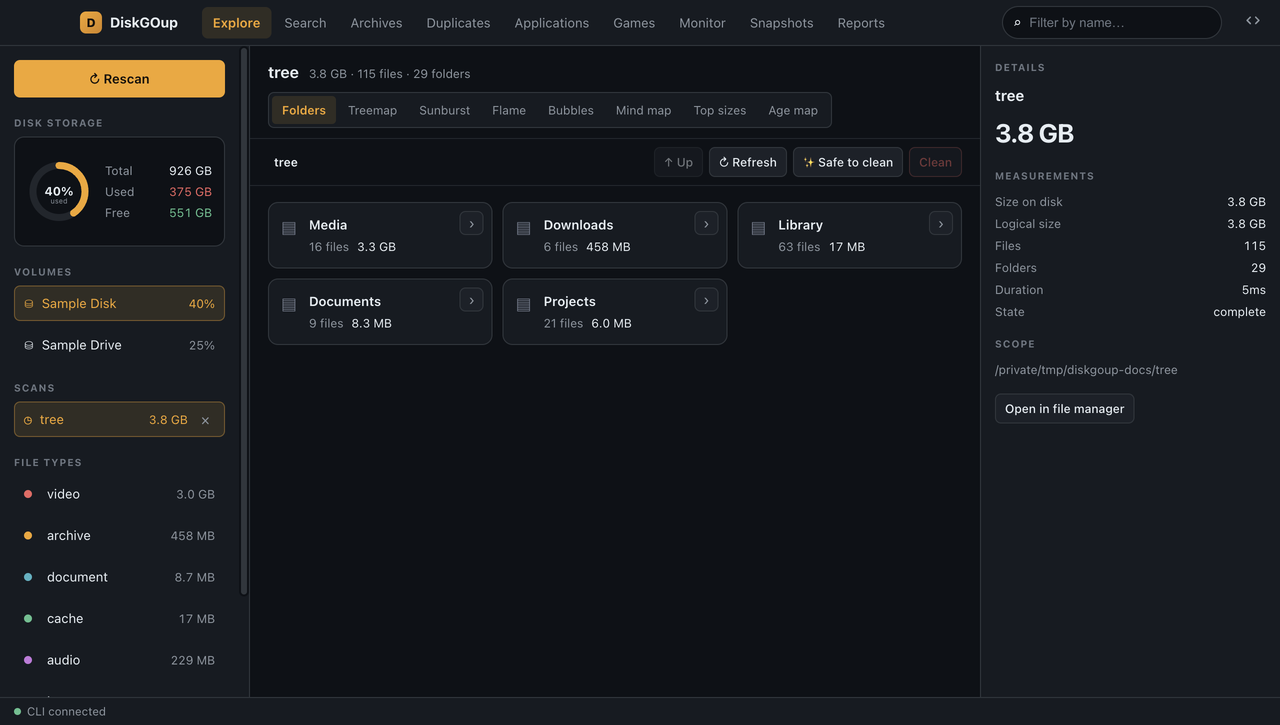
Explore is the heart of the app. It shows the open scan as folders you can walk, as charts, and as numbers — and it is where the cleanup starts.
Above the workspace there are eight views:
| View | What it shows |
|---|---|
| Folders | One folder of the scan at a time, as cards. |
| Treemap | The folders as rectangles, sized by bytes. |
| Sunburst | The same, as rings around the root. |
| Flame | An icicle chart — the depth of the tree against its size. |
| Bubbles | One circle per folder, sized by bytes. |
| Mind map | The folders as a radial tree of their parent. |
| Top sizes | A table of the largest entries, with their share. |
| Age map | How much of the scan was last touched in each period. |
The folder browser
Section titled “The folder browser”The Folders view shows one folder at a time. The breadcrumb at the top says where you are, ↑ Up goes one level higher, and the › button on a card opens that folder. Opening a folder is an index read — the disk is not walked again.
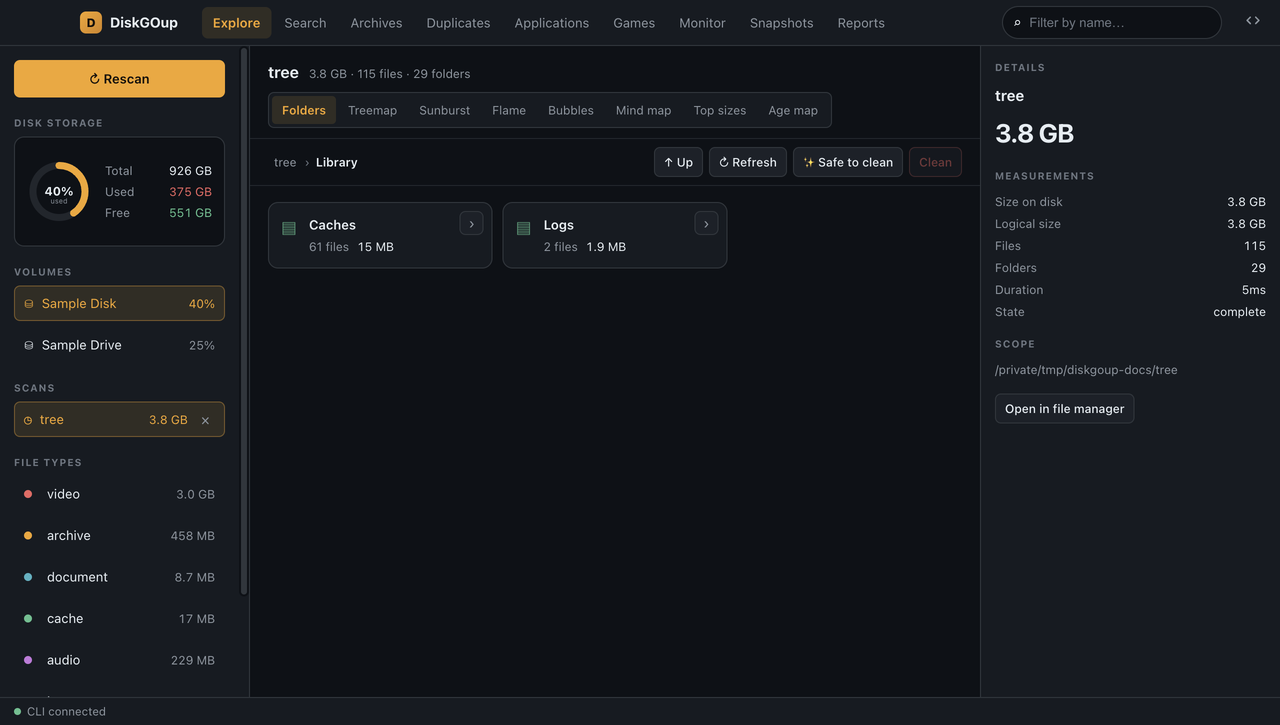
Clicking a card selects it. Cmd/Ctrl adds one entry to the selection and
Shift takes a range — the same rules a file manager uses. The Filter by
name field in the top bar narrows the listing as you type; it reaches every
entry, even the ones beyond the first thousand that are drawn.
A card carries a badge when the item cannot be cleaned: system for the folders the platform or your account needs, protected for the ones a protection rule covers.
The inspector
Section titled “The inspector”Selecting an entry fills the panel on the right with its measurements: the size on disk, the logical size, the number of files and subfolders, its share of the scan and the day it was last modified. Open in file manager reveals it in Finder, Explorer or the file manager of the platform.
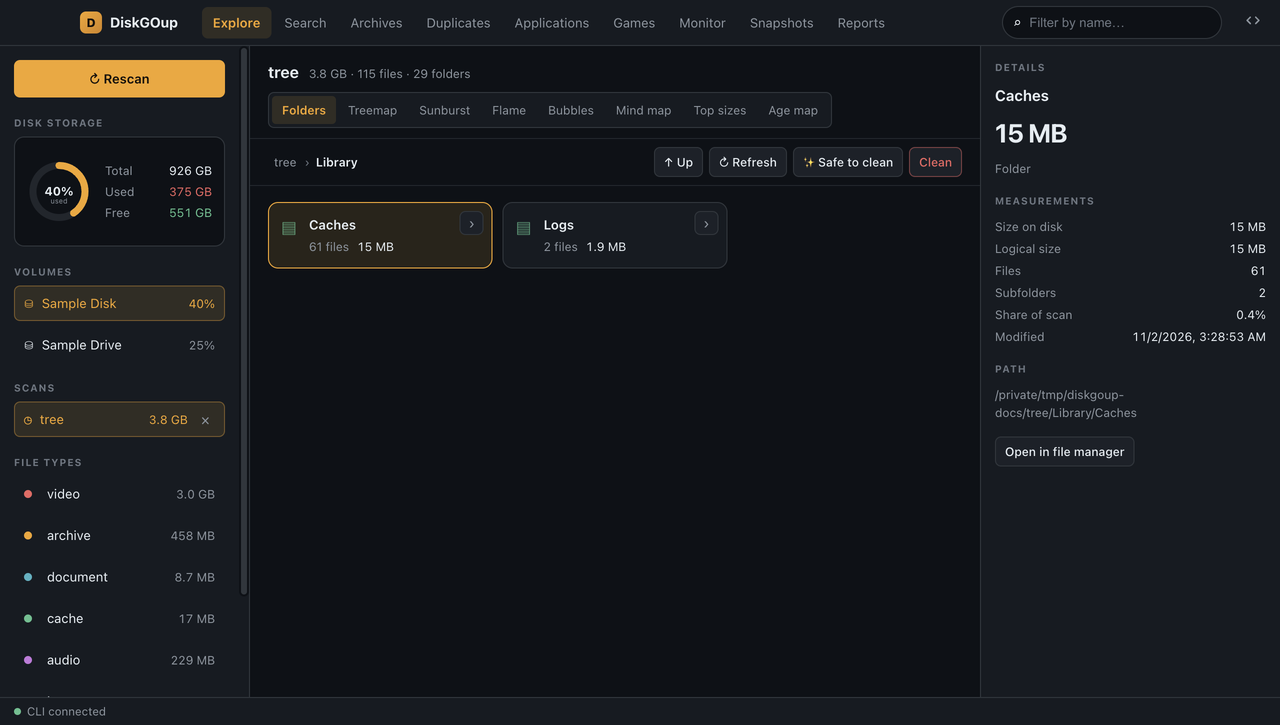
Without a selection the inspector describes the scan instead — its root, its totals, how long it took and whether it is complete.
Safe to clean
Section titled “Safe to clean”The ✨ Safe to clean button opens a scope with the folders the operating system regenerates: caches and logs. It is a listing like any other, so the ordinary selection and the ordinary review apply.
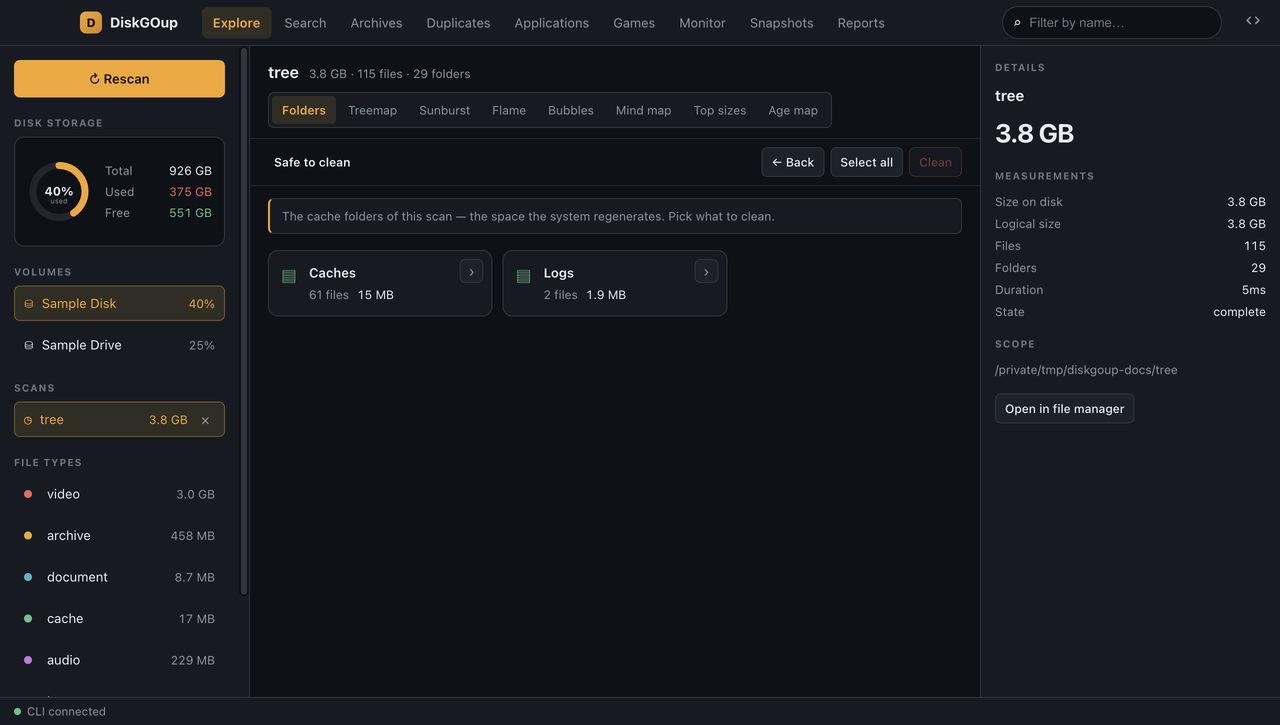
The scope is read from the index of the open scan — no second walk of the disk. Select all takes everything on the list, and ← Back returns to the folder you came from.
Cleaning
Section titled “Cleaning”Clean puts the selection on the review list. The review opens only when something was actually staged: an item a protection rule covers is refused with the reason, and the listing stays where it is instead of opening an empty dialog.
From there the flow is the one the CLI uses:
stage → review → validate → confirm → revalidate → recycle bin- Move to Trash — recoverable. The space comes back when the Trash is emptied.
- Delete permanently — a second confirmation, because it cannot be undone.
Nothing is removed before you approve it, and cancelling leaves every file exactly where it was.
Refresh
Section titled “Refresh”↻ Refresh walks the folder you are looking at again and corrects the index — the rest of the scan keeps what it holds, and the totals are corrected by the difference. When a folder changed on the disk the app says so and offers the refresh.
The charts
Section titled “The charts”Treemap
Section titled “Treemap”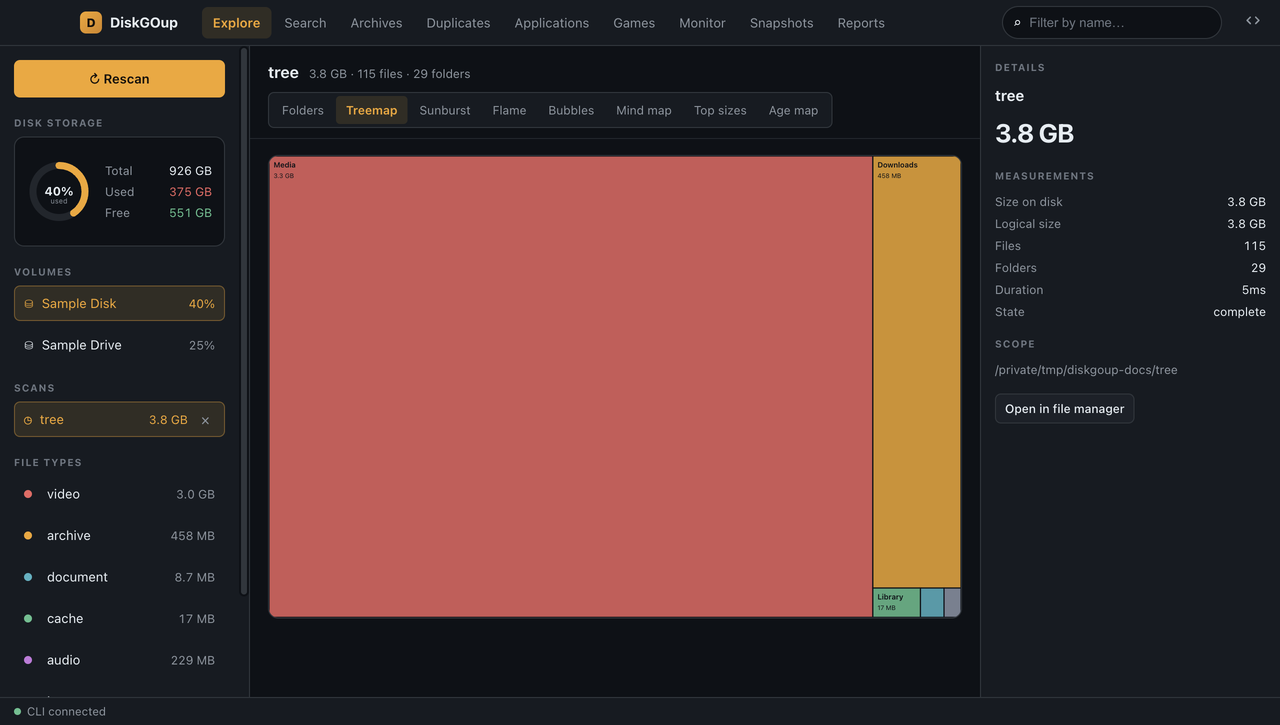
Each rectangle is a folder, sized by its bytes. The name and the size are drawn inside the tile when it is big enough to hold them.
Sunburst
Section titled “Sunburst”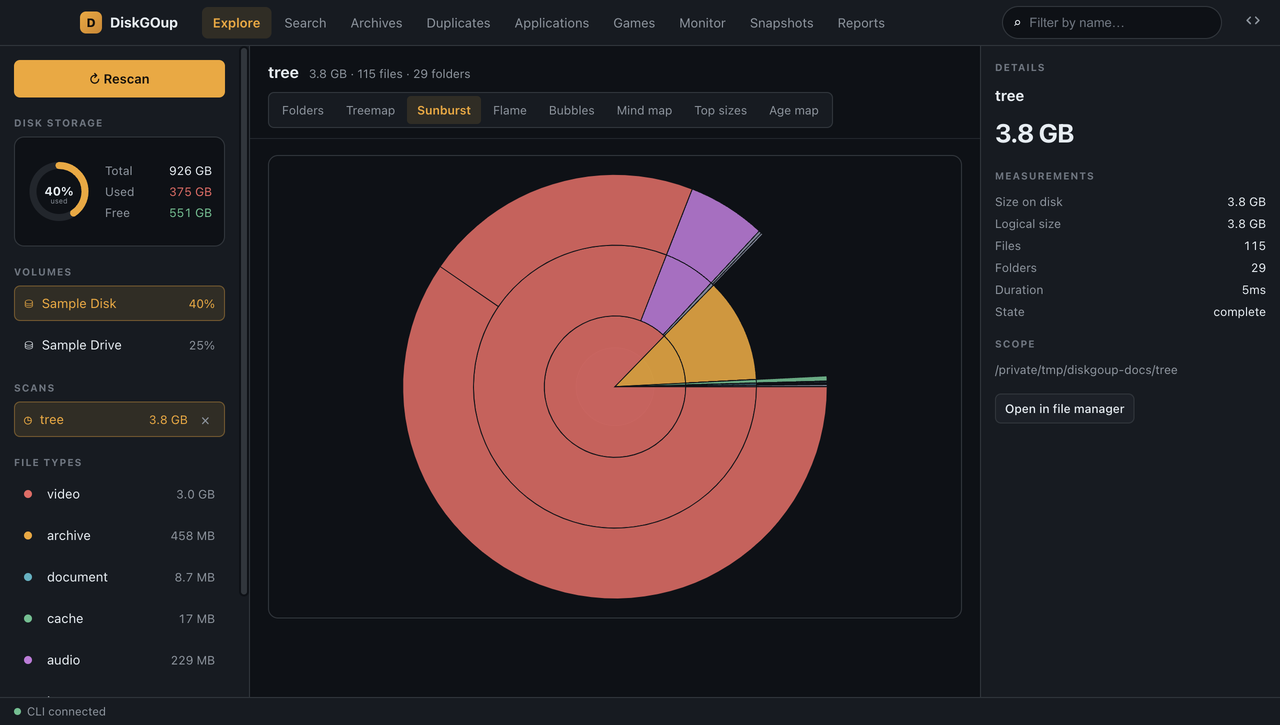
The same folders as rings: the root in the middle, one ring per level.
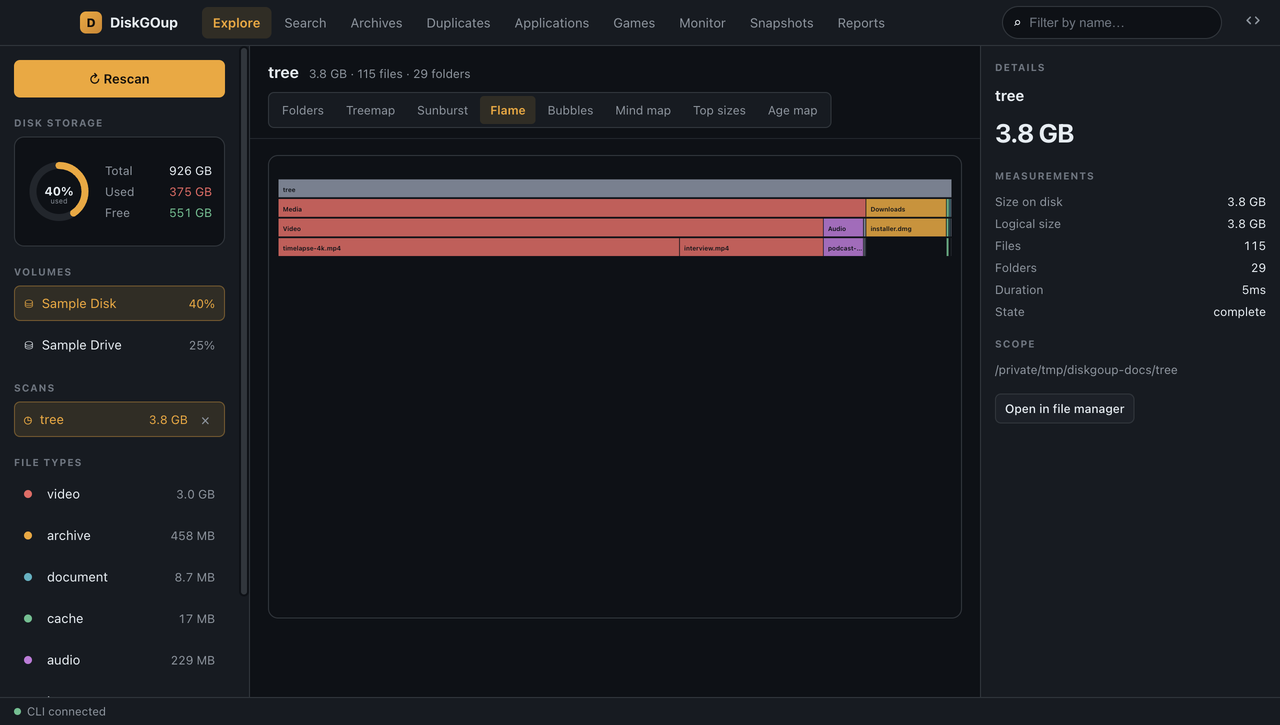
An icicle chart — the width of a row is the size, the depth is the level of the tree.
Bubbles
Section titled “Bubbles”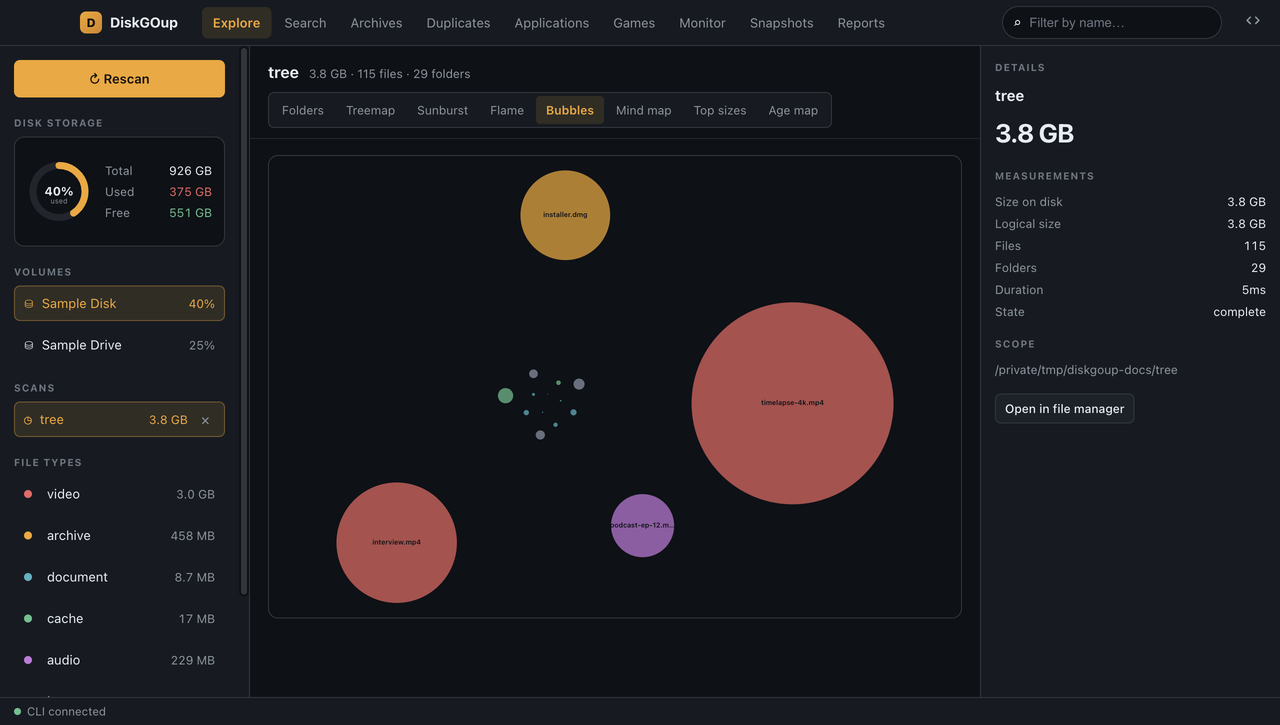
One circle per folder, sized by bytes, packed together.
Mind map
Section titled “Mind map”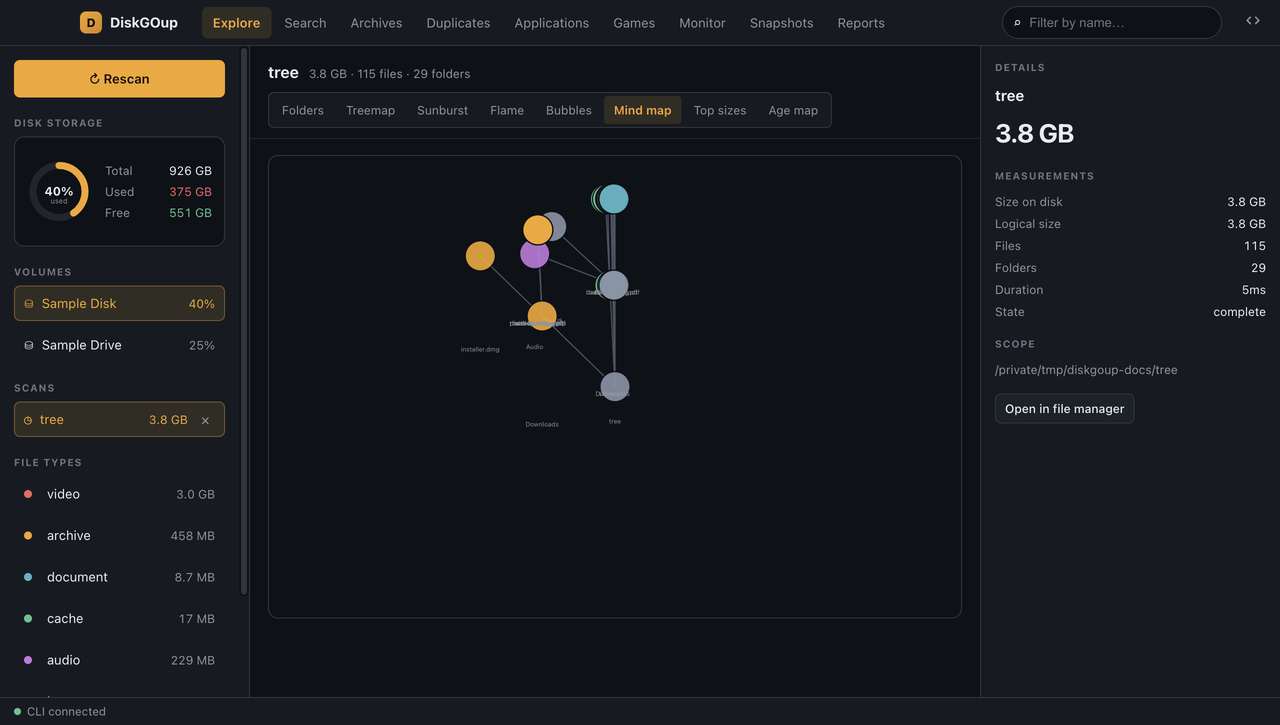
The folders as a radial tree, each one linked to its parent.
Top sizes
Section titled “Top sizes”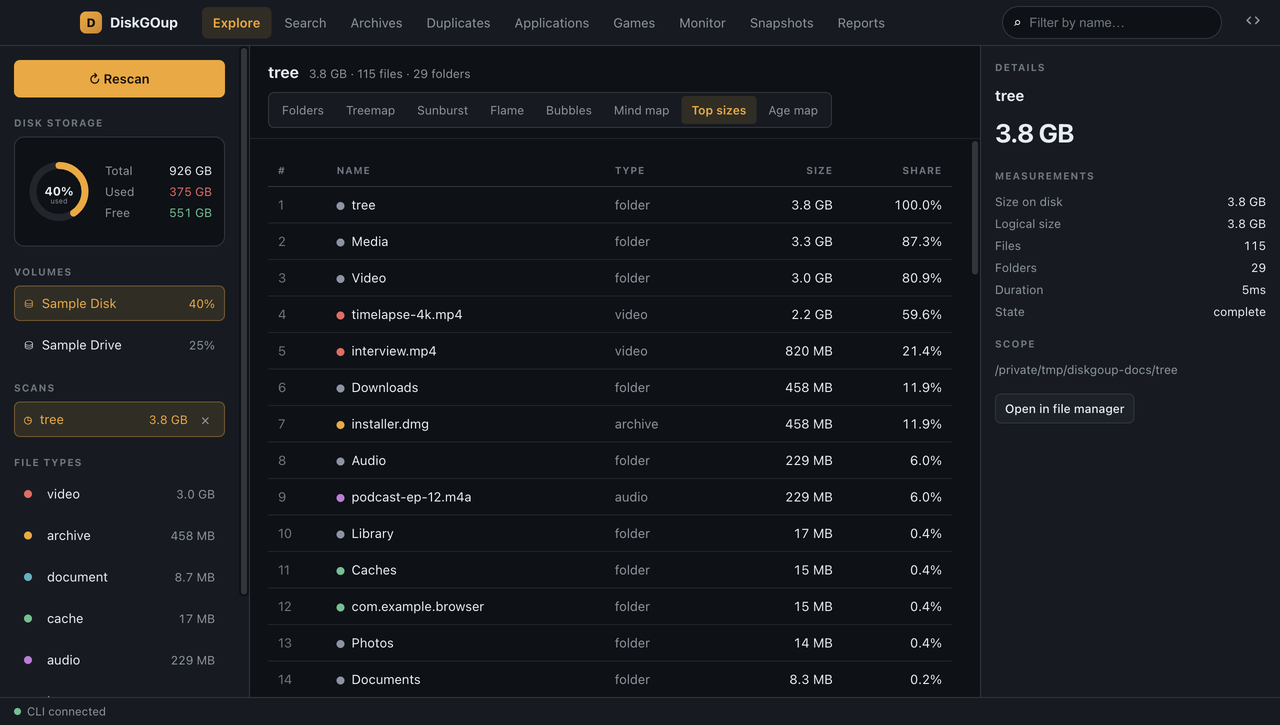
The largest entries of the scan as a table, with the share of the scan next to every size.
Age map
Section titled “Age map”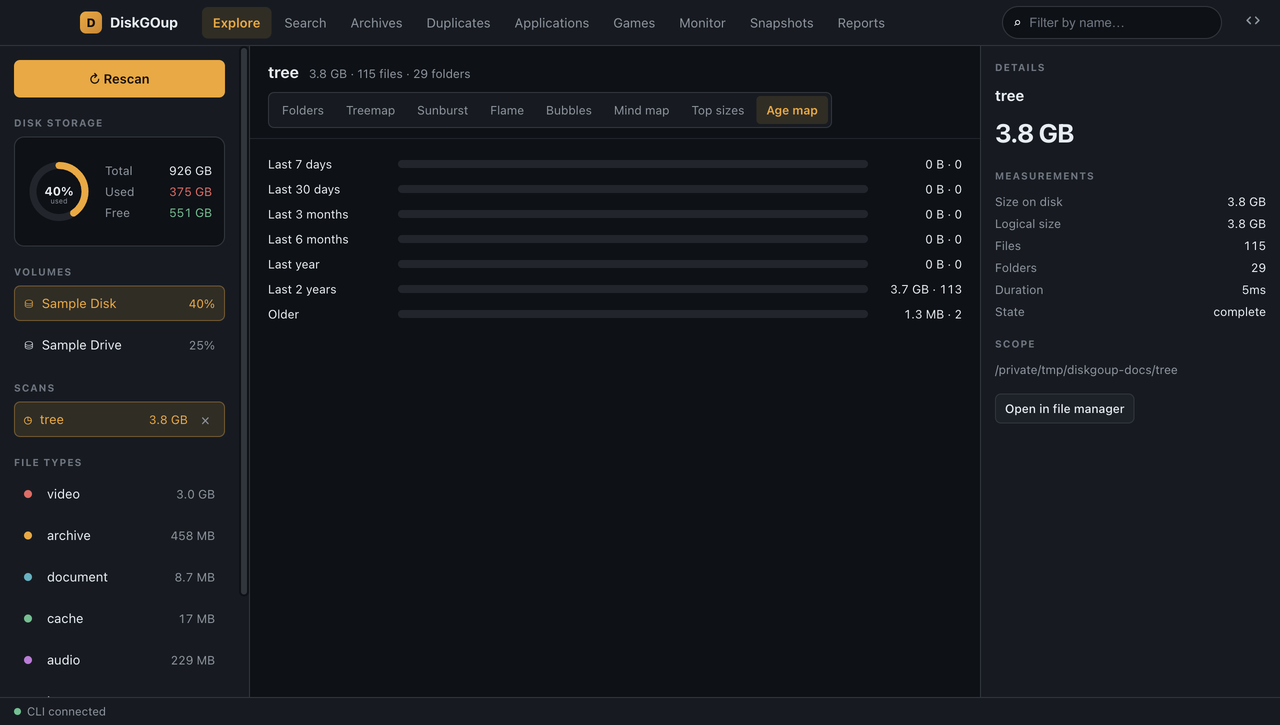
How much of the scan was last touched in each period — the fastest way to find the folders you forgot about.